GUIDE · ADMIN

Admin guide

Everything you need to run your club with Mah Tables, step by step, with screenshots of the app.

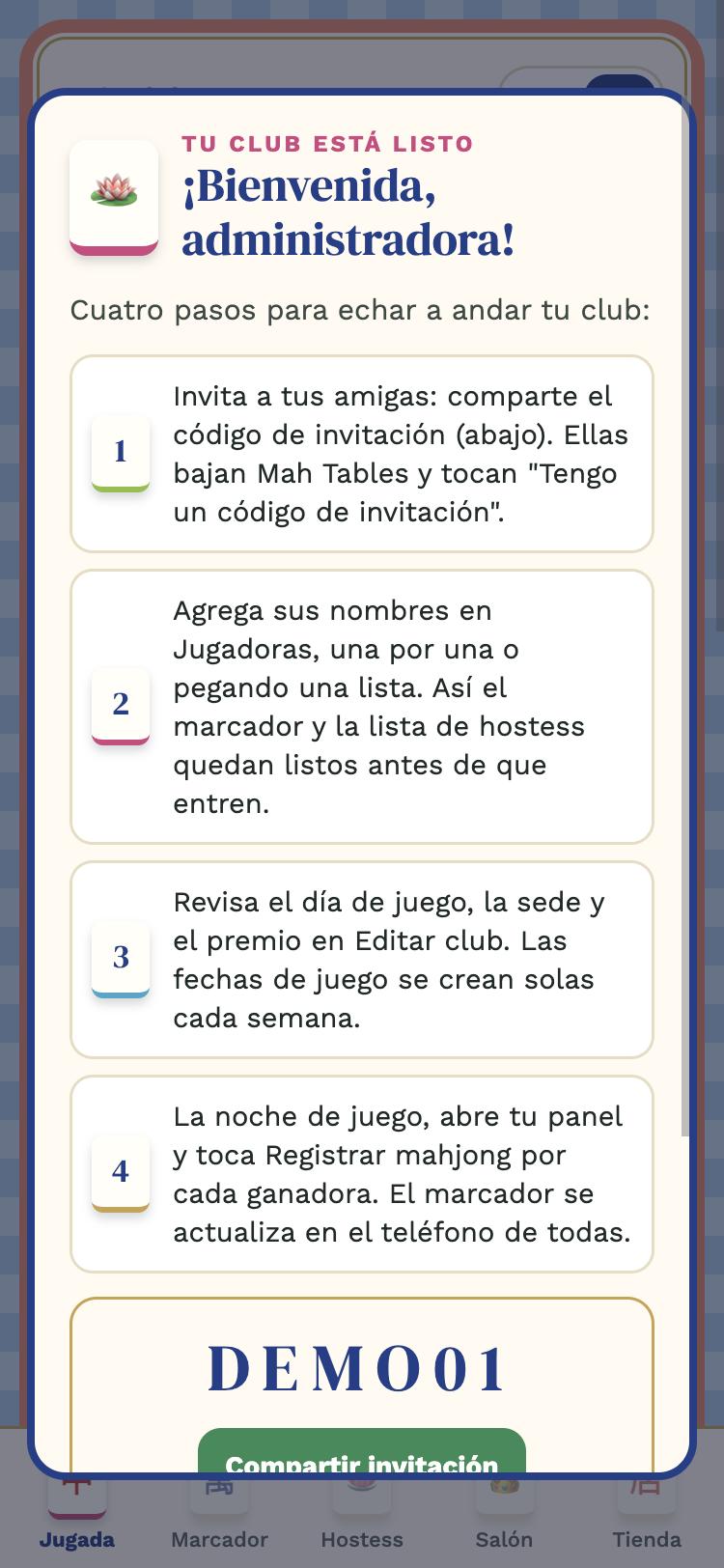
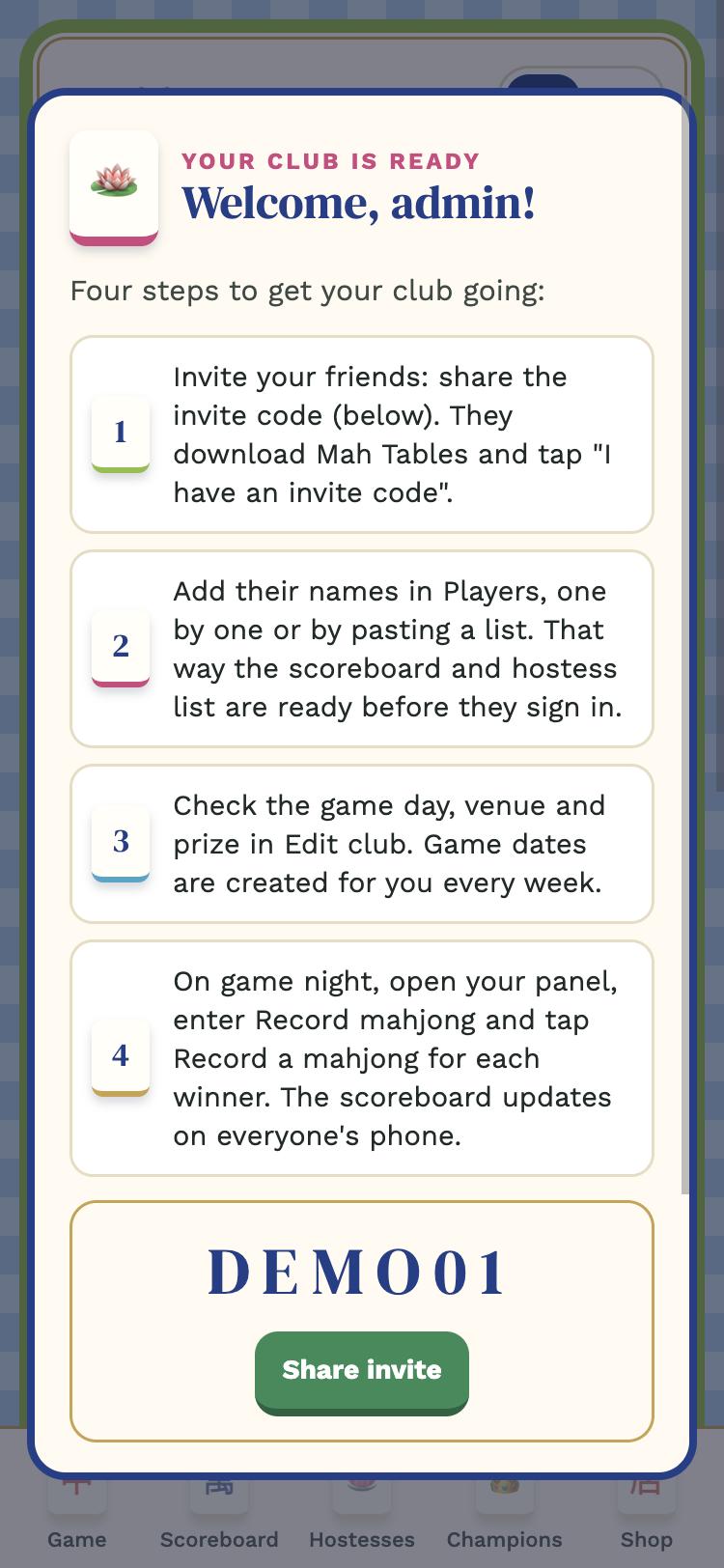
The welcome window when you create your club
1

Create your club

Tap Create my club, type the name, the game day (fixed every week or flexible), the usual venue and, if your club collects a monthly contribution, how it is paid (for example your Zelle). You become the admin: the only person who sees money and settings.

When you finish, a welcome window shows the four first steps and your invite code.
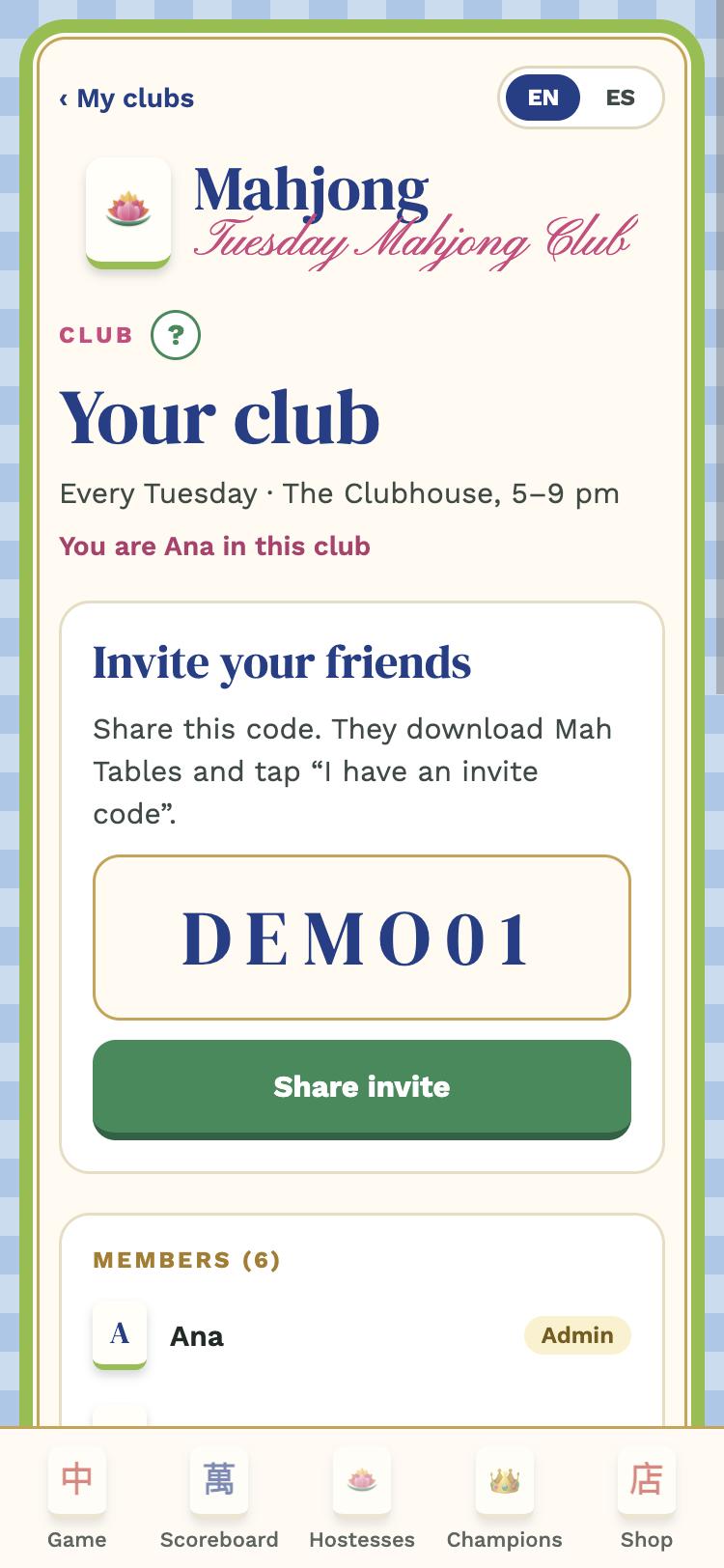
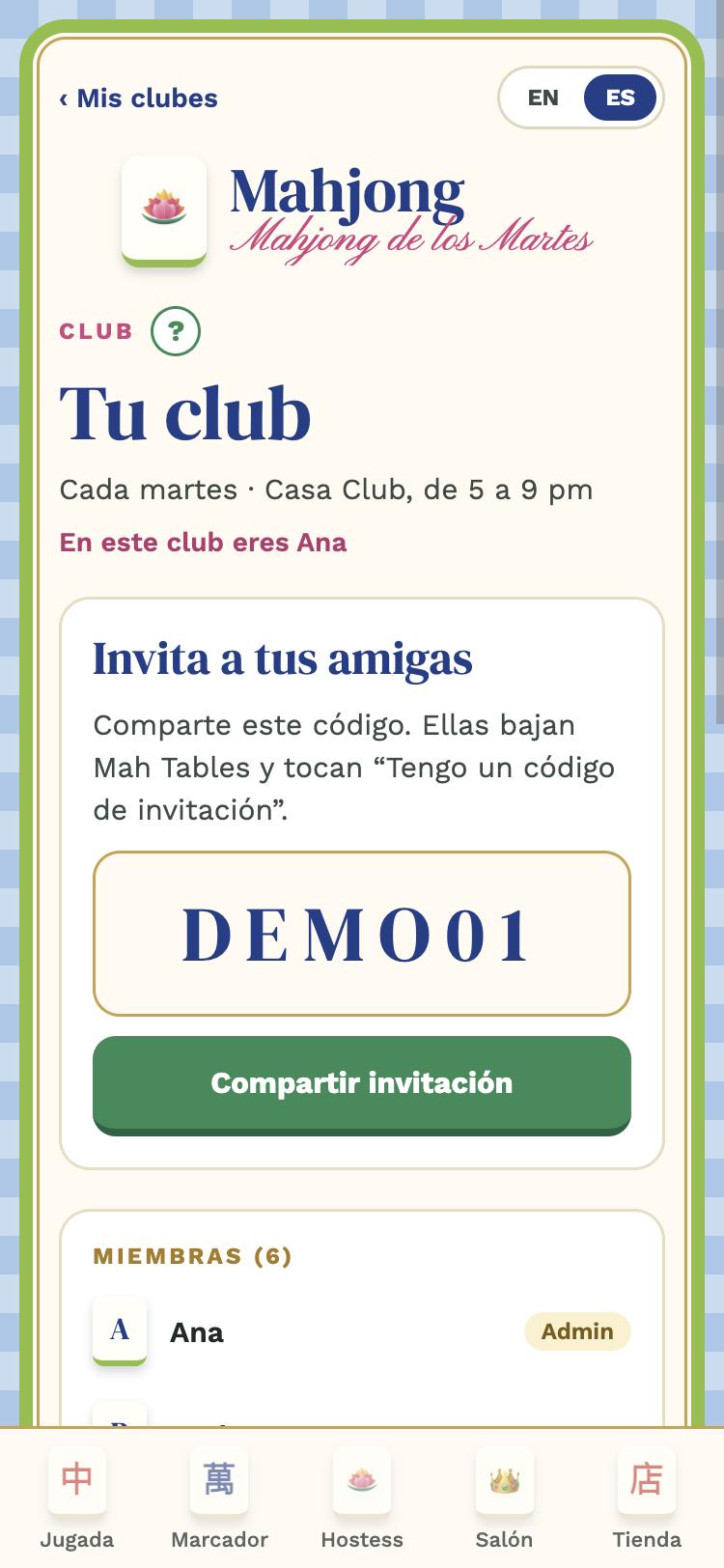
Club tab: code and Share invite button
2

Invite your friends

Your club has a 6-letter code. Share it by text message, WhatsApp or email with Share invite. Each friend downloads Mah Tables, taps I have an invite code, signs in with her email and types the code.

The first thing the app asks her is Who are you?: she picks her name from the list, just once. From then on everything is recorded under her name.

Tip: add the players' names before sending the code, so each one finds her name in the list when she signs in.
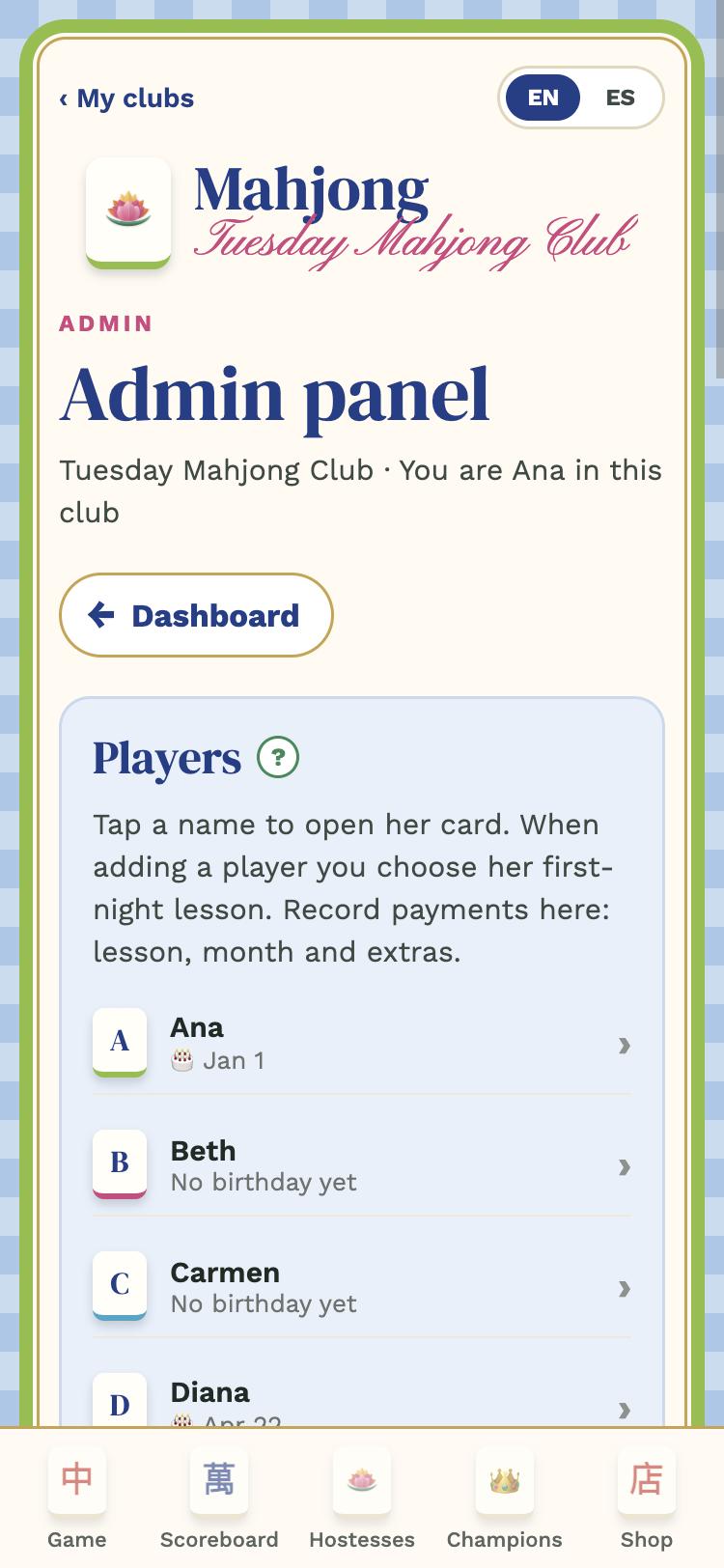
Players section of the panel
3

Add the players

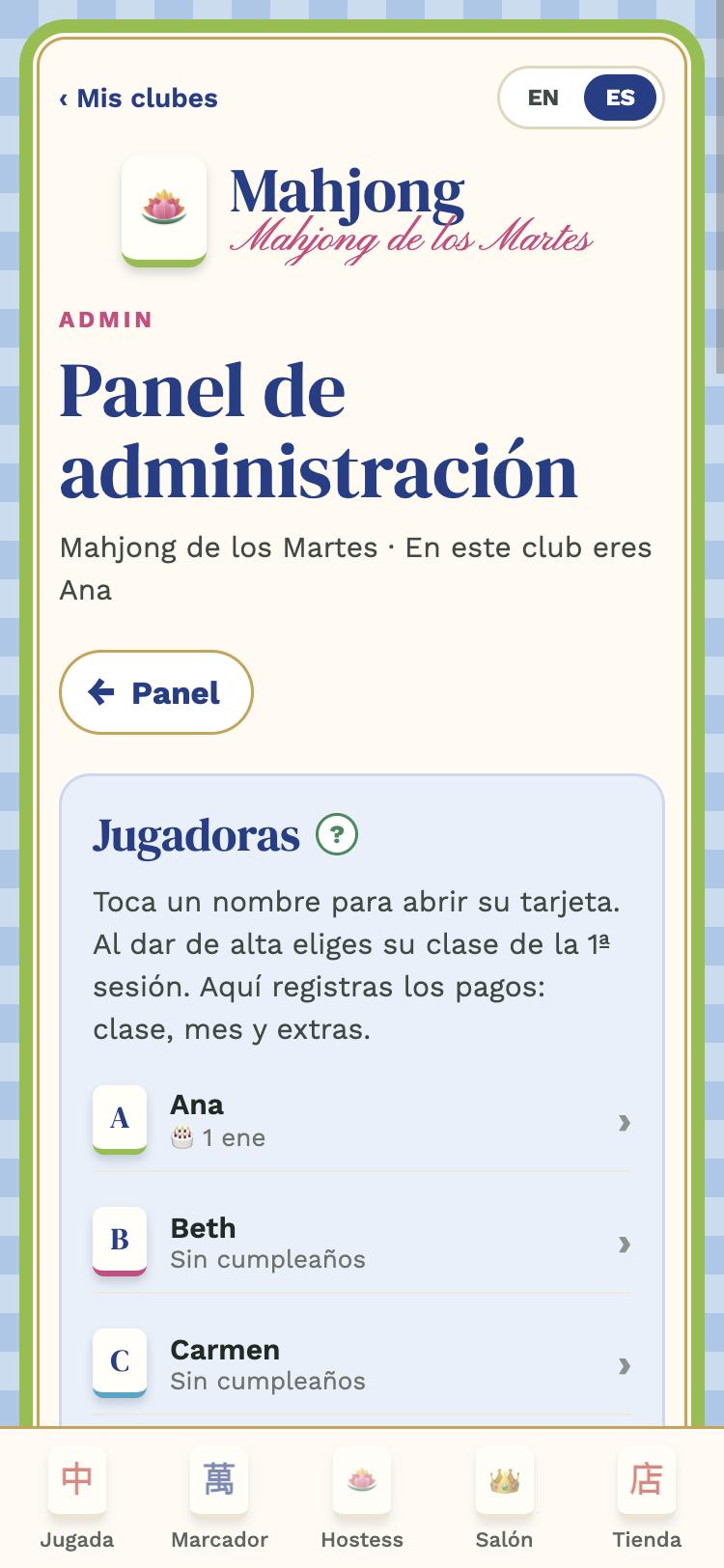
In your panel, tile Players: add them one by one (name, birthday and whether she takes a lesson in her first session) or tap Paste a list of names and paste the whole list from a text or chat, one name per line.

Tap any name to open her card: there you record payments, pause her, make her a sub-admin or edit her data.

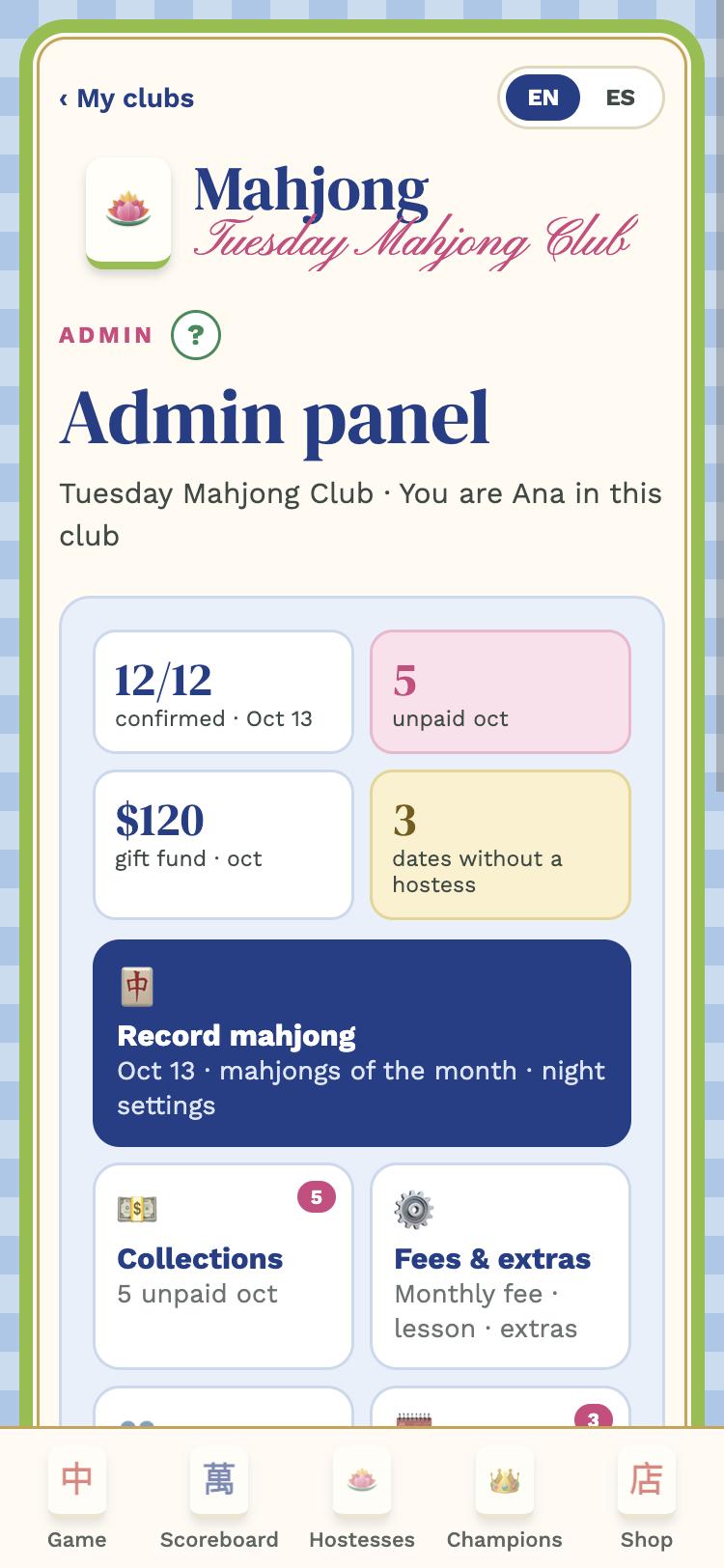
The admin panel tiles
4

Your panel

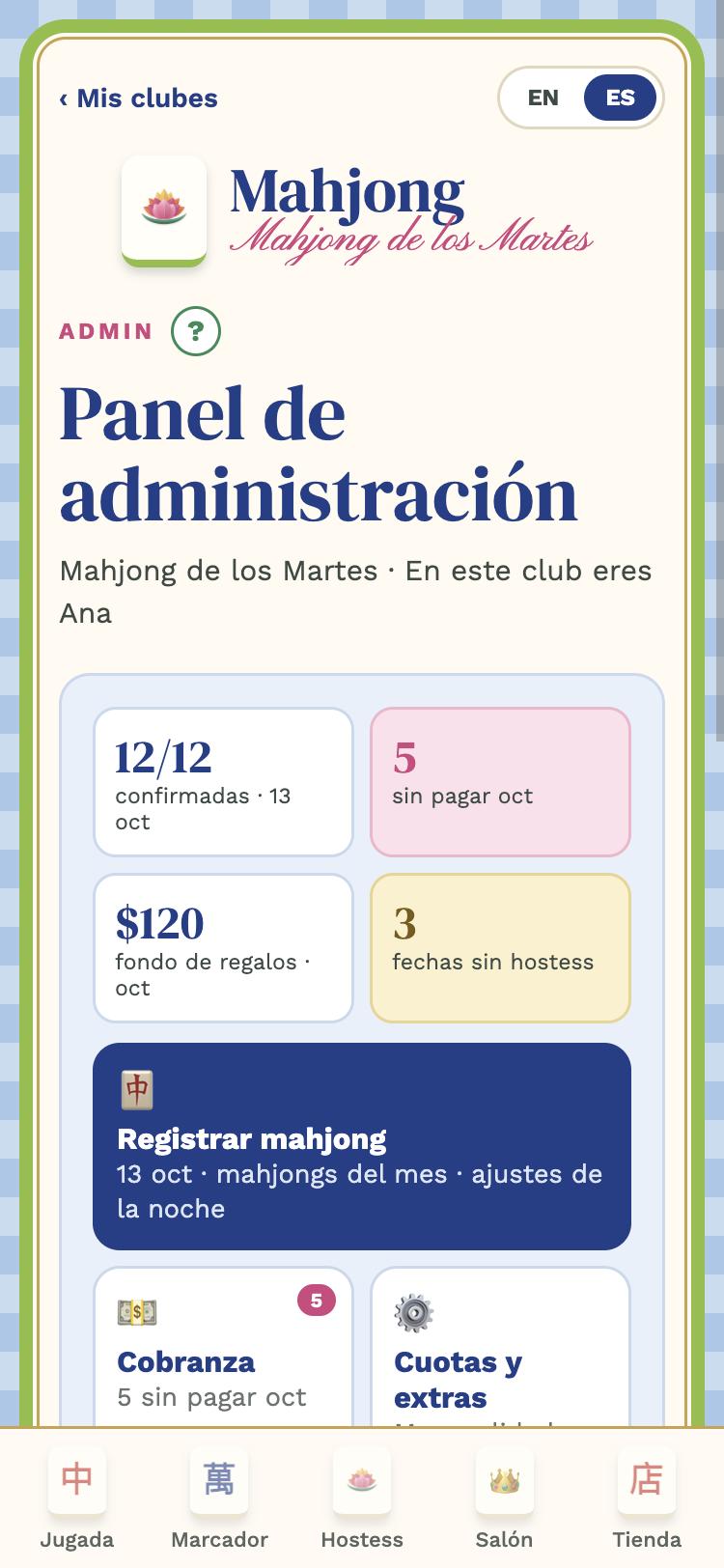
The Club tab is your panel. At the top, today's numbers: confirmed, who hasn't paid the month, the gift fund and dates without a hostess. Below, one tile per section:

Record mahjonggame night
Collectionswho owes and record payments
Fees & extrasmonthly fee, lesson, extra contributions
Playersthe club list
Calendardates and venues
Guestsone-night passes
Newsnotices to the club
Pollquestion and vote
Monthly reportattendance and income, PDF
Activity logwho recorded what
Edit clubname, day, venue, rules

On the players' side (Next game, Scoreboard, Hostess, Hall of Fame) you see exactly what they see.

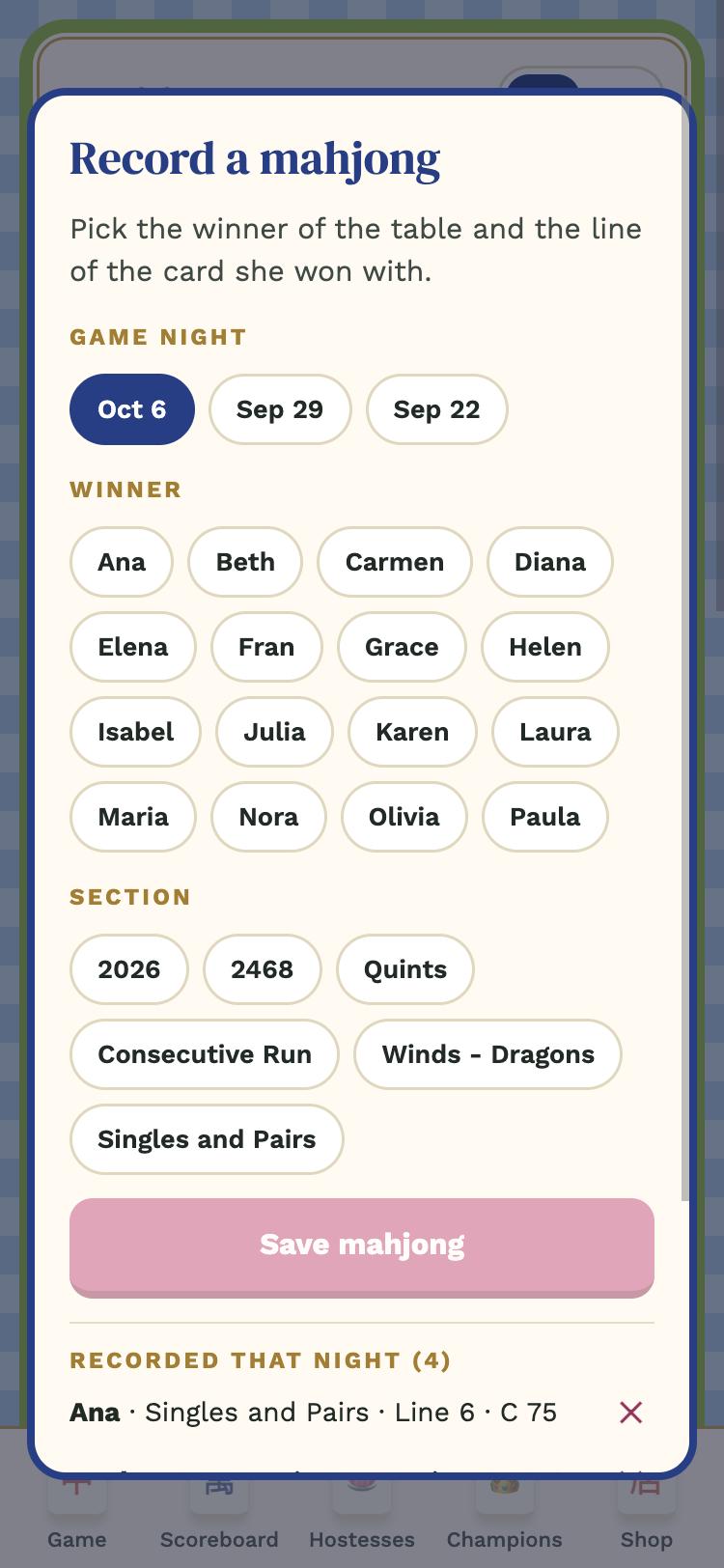
The Record mahjong window
5

Game night

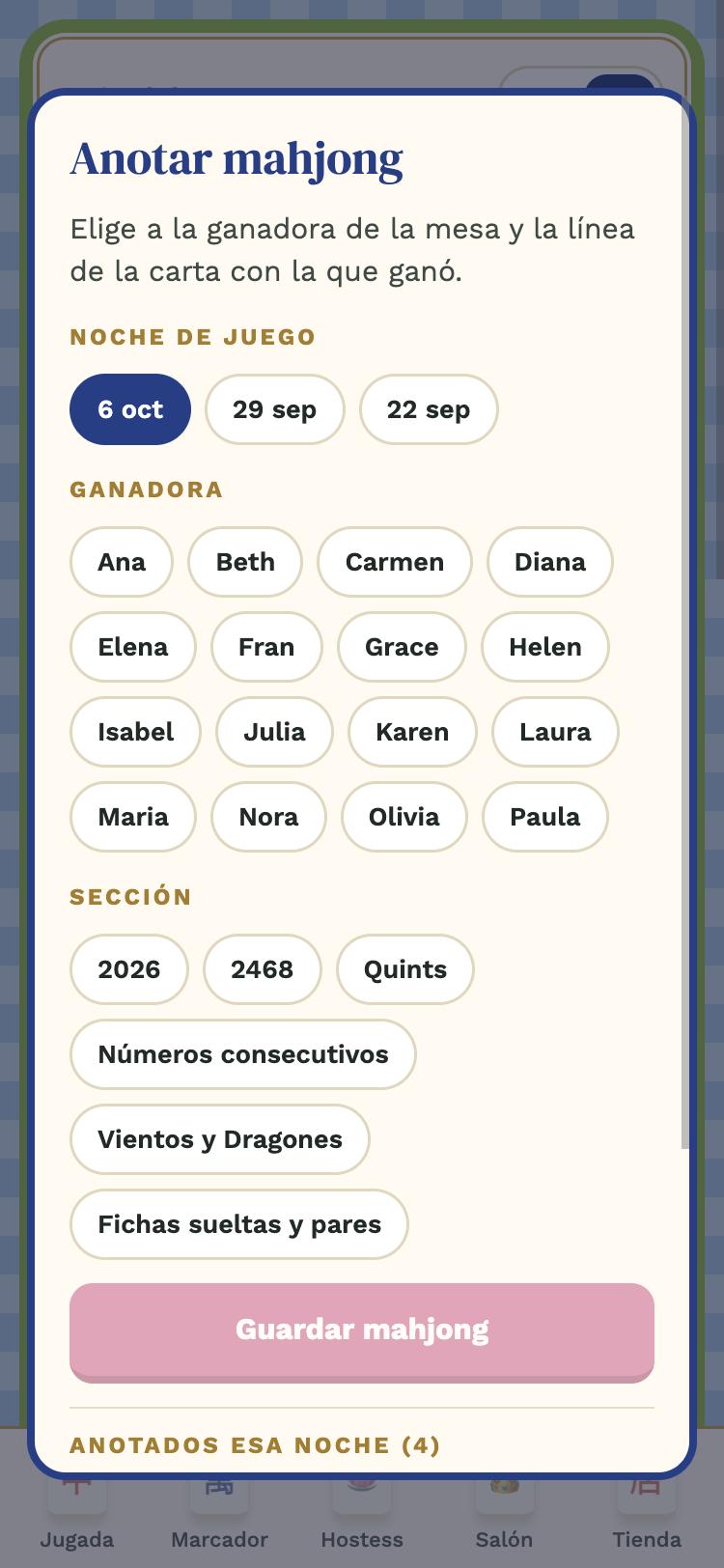
Open the Record mahjong tile and tap Record a mahjong. For each winner: pick the night, the player and the card line (section and number). Points come from this year's NMJL card (NMJL: the National Mah Jongg League, which publishes the official card every year) and the scoreboard updates on everyone's phone instantly.

  • Tonight's settings: seats in tables of 4, venue, game-day fee and passes for anyone blocked.
  • Tables: with Suggest tables the app seats by level and preferences; you confirm table by table and each player gets her table by push.
  • Game-day fee: if your club charges per game, you tick who paid.
No signal: if the house has no reception, what you record is saved on your phone and sent by itself when the signal returns.
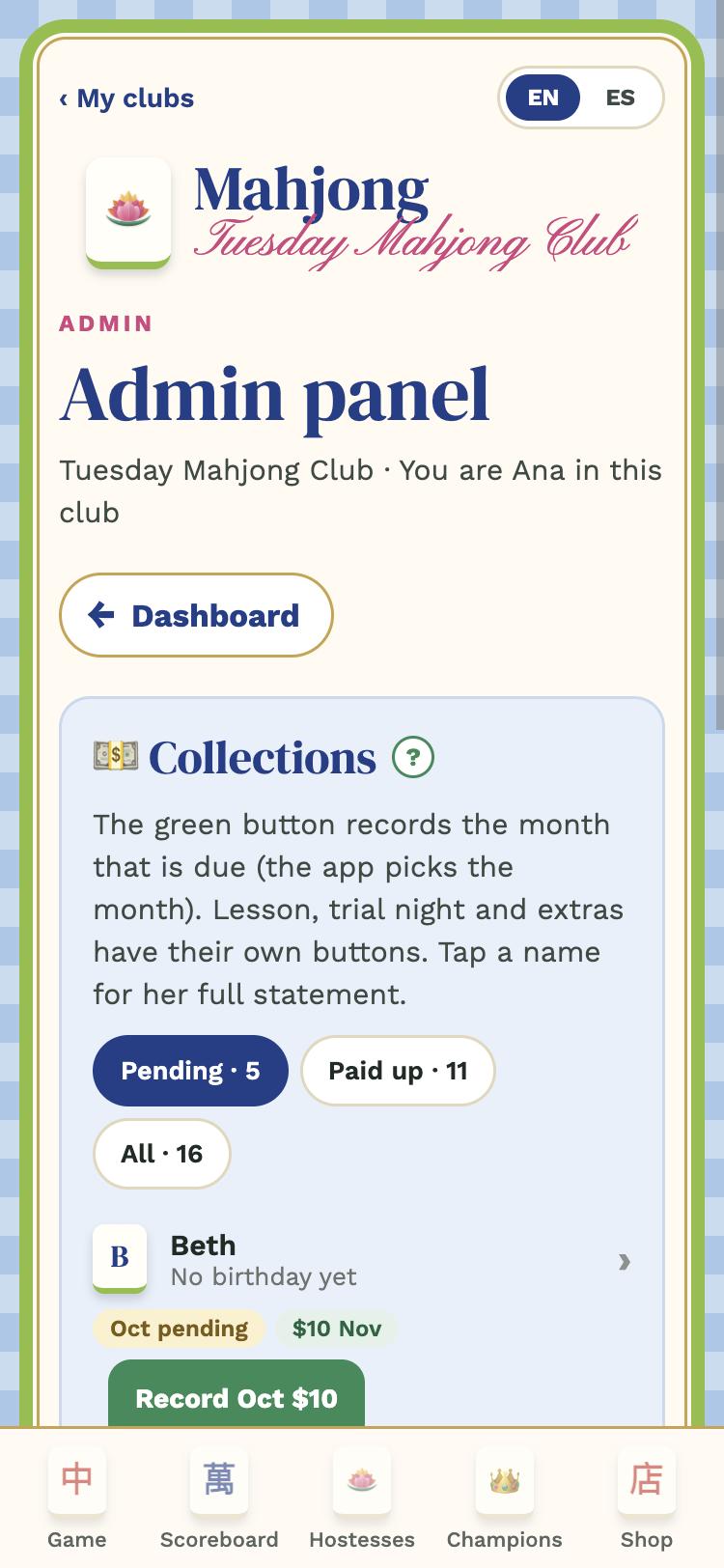
Collections section
Collections section
6

Collections

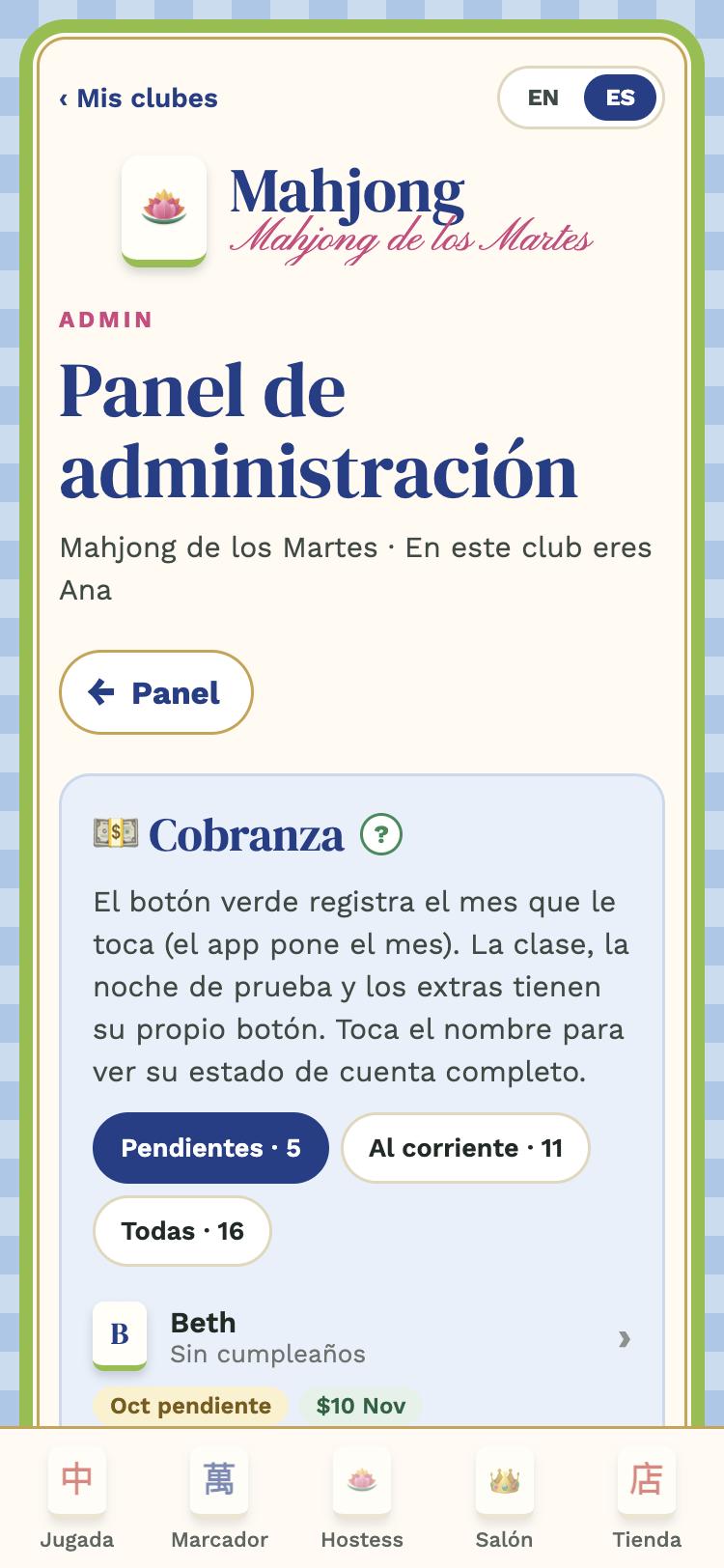
In Collections you see who owes and who is paid up. The Record button registers the month that is due for each one: always the oldest first, no skipping ahead. What you collect adds to the gift fund everyone sees on the Scoreboard.

  • Fees & extras: set the monthly fee, the lesson price and create extra contributions with a deadline.
  • Monthly report: income by concept, nights and attendance; Export PDF to send it by text or email.
  • Pause: from a player's card, if she travels or is ill, those months are not charged.
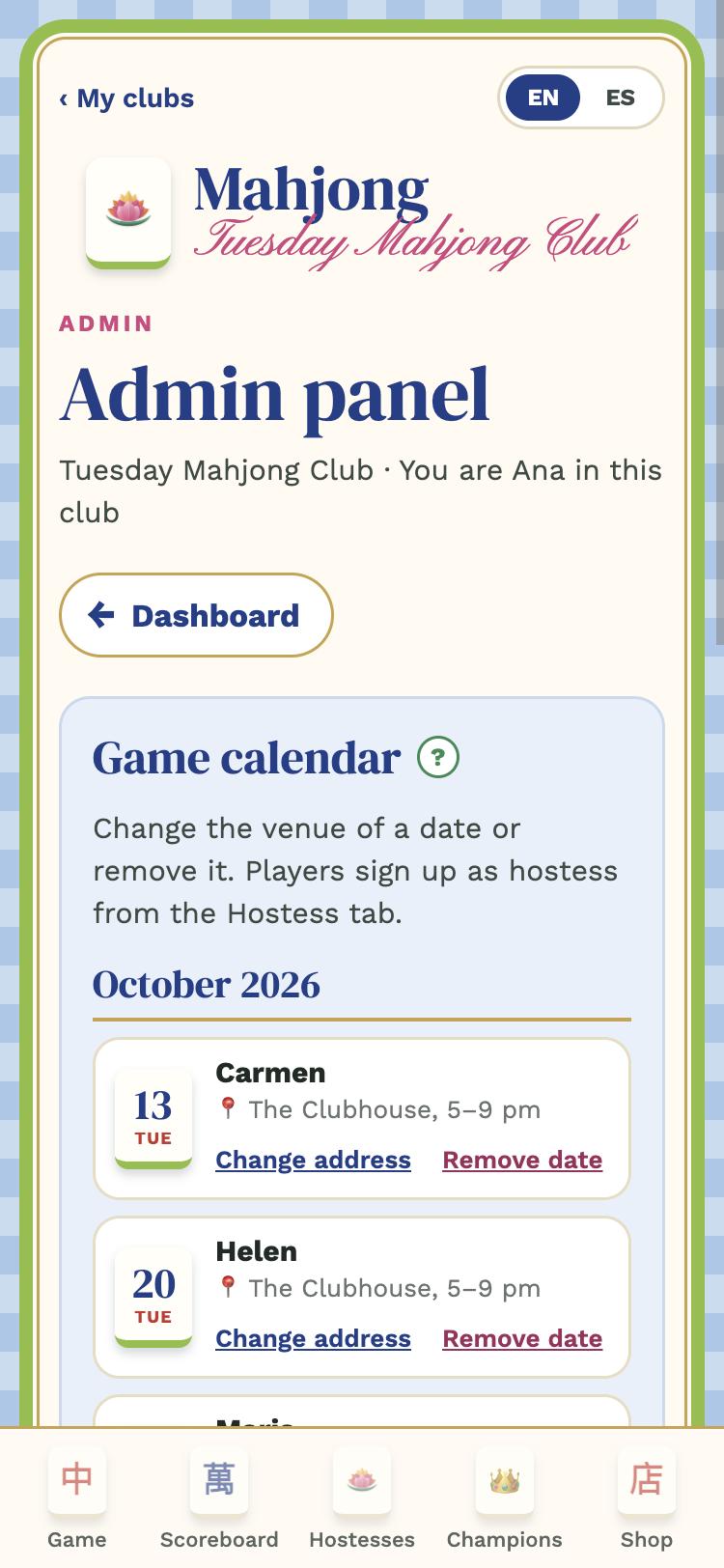
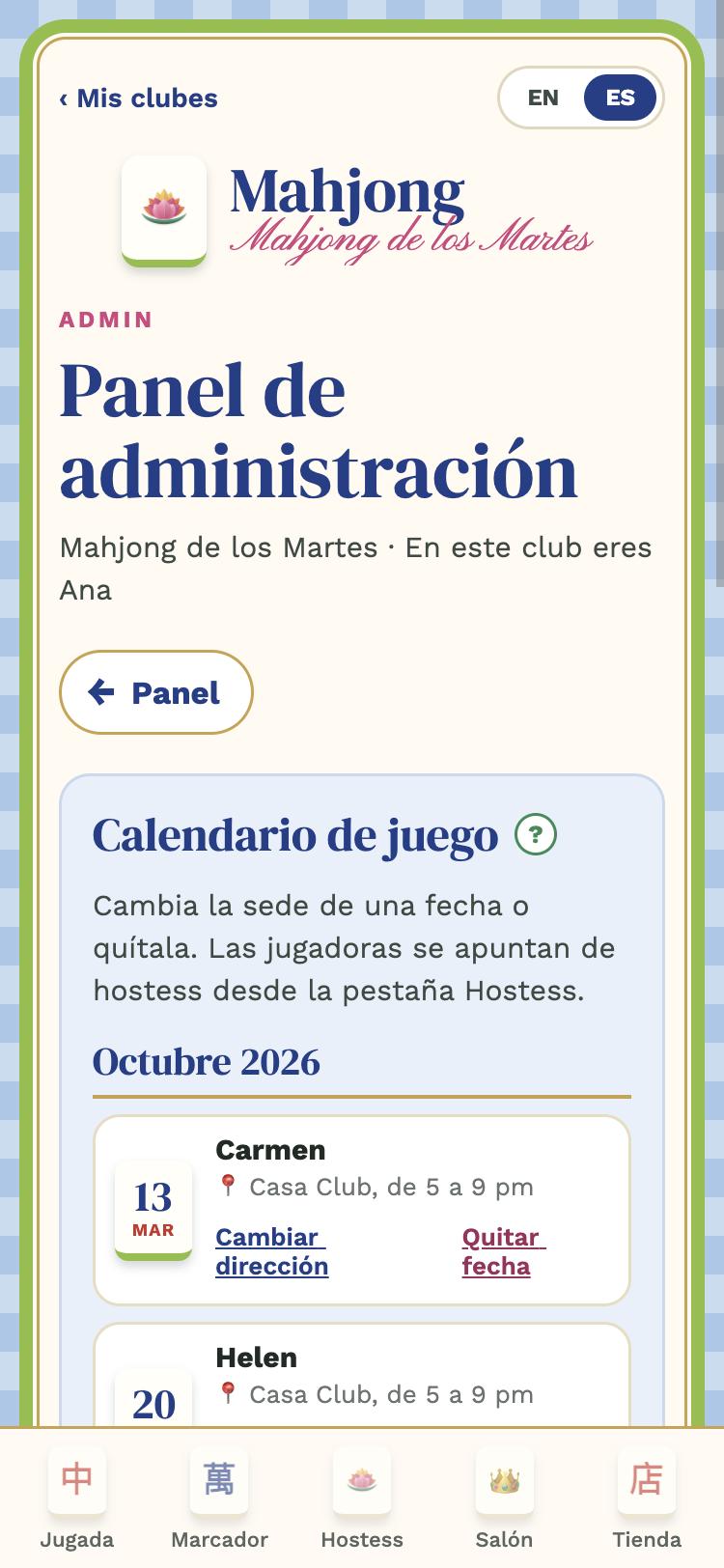
Game calendar in the panel
7

Calendar and hostess

With a fixed day, game dates are created by themselves every week. In Calendar you change the venue of a date or remove it if there is no game that week.

Players sign up as hostess in the Hostess tab; you see how many dates are still open in your panel. Two days before each game the app sends a nudge only to those who haven't said whether they're coming.

8

Notices, poll and guests

  • News: notices that show on Next game; with an expiry date they disappear by themselves.
  • Poll: a question with 2 to 6 options; players vote on the Scoreboard and with a deadline it closes by itself.
  • Guests: someone comes for one night with a pass; if she stays, make her a member with one tap.
  • Sub-admins: from a player's card; they only record mahjongs. They get a notice with their guide.
  • Backup admin: in Players → Members; she inherits the club if you stop using the app.
  • Activity log: who recorded what and when, to settle any doubt.
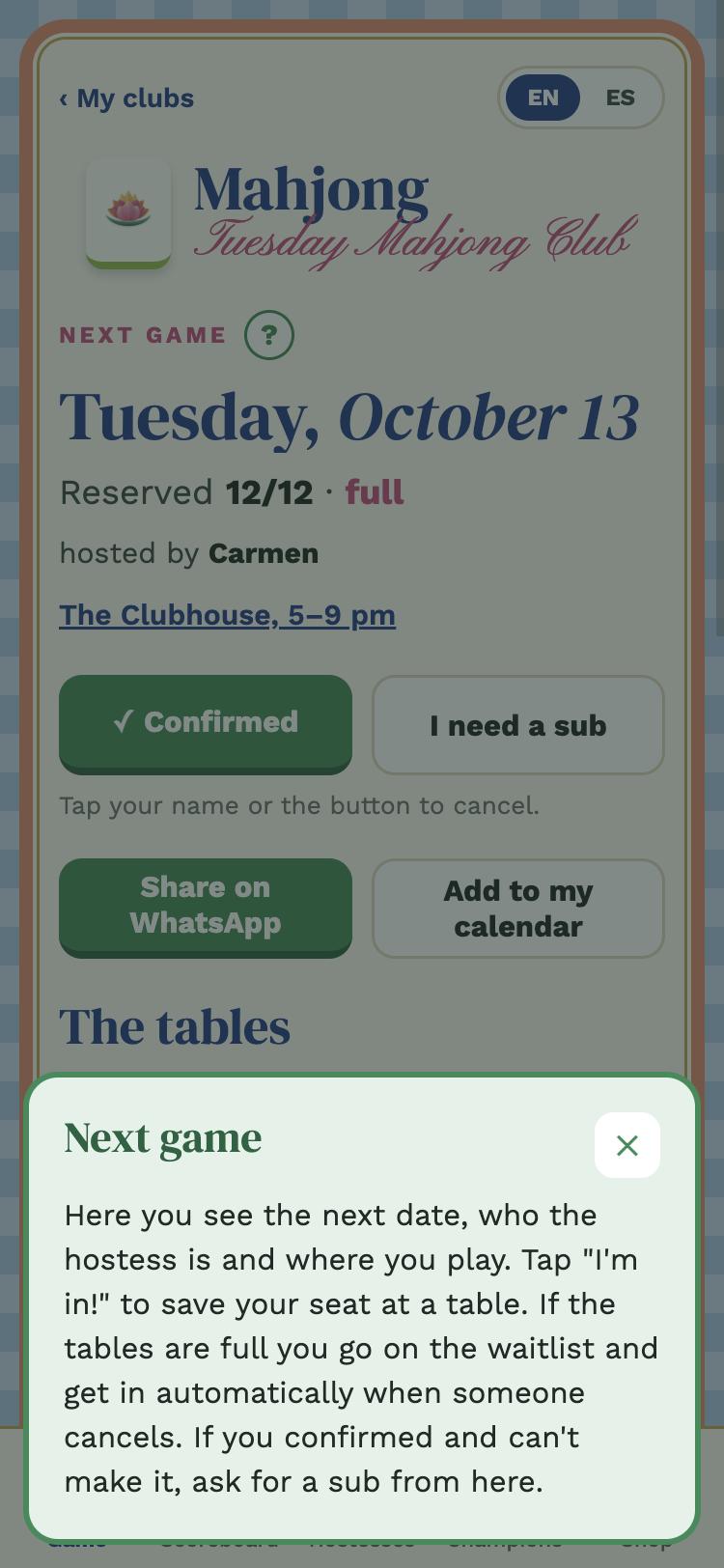
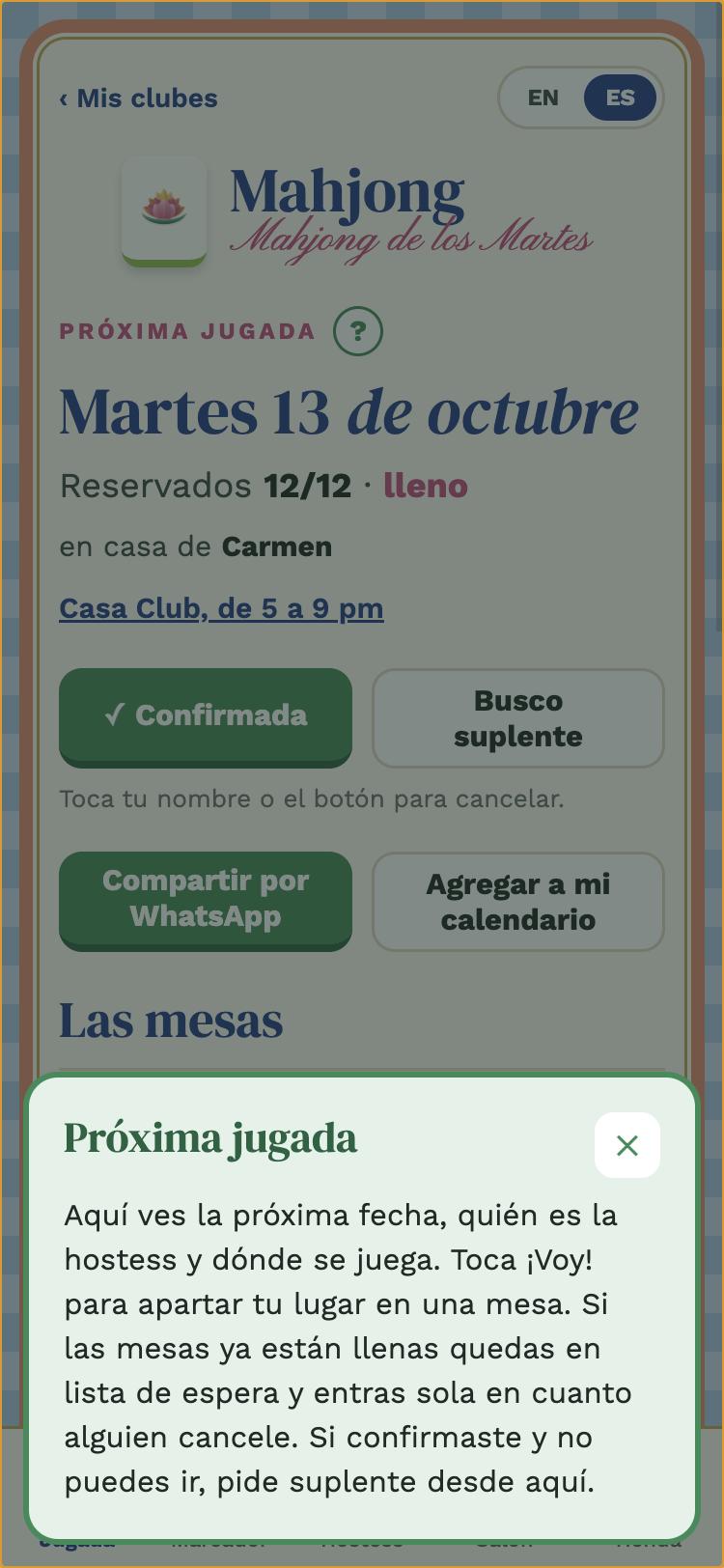
The green help window
9

The green "?"

On every screen and every panel section there is a ? button next to the title. Tap it and a window explains that place. If a player gets lost, that button is the fastest answer.

You can reopen this guide any time from Edit club → Admin guide.

Questions?

Write to [email protected] with your club's name. We usually reply within one business day.

GUÍA · ADMINISTRADORA

Guía de la administradora

Todo lo que necesitas para llevar tu club con Mah Tables, paso a paso y con capturas del app.

La bienvenida al crear tu club
1

Crea tu club

Toca Crear mi club, escribe el nombre, el día de juego (fijo cada semana o flexible), la sede habitual y, si tu club cobra una aportación mensual, cómo se paga (por ejemplo tu Zelle). Quedas como administradora: la única persona que ve el dinero y los ajustes.

Al terminar aparece la ventana de bienvenida con los cuatro pasos de arranque y tu código de invitación.

Pestaña Club: código y botón Compartir invitación
2

Invita a tus amigas

Tu club tiene un código de 6 letras. Compártelo por mensaje de texto, WhatsApp o correo con Compartir invitación. Cada amiga baja Mah Tables, toca Tengo un código de invitación, entra con su correo y escribe el código.

Lo primero que le pregunta el app es ¿Quién eres?: elige su nombre de la lista una sola vez. Desde entonces todo queda a su nombre.

Consejo: agrega los nombres de las jugadoras antes de mandar el código, así cada una encuentra su nombre en la lista al entrar.
Sección Jugadoras del panel
3

Agrega a las jugadoras

En tu panel, mosaico Jugadoras: agrega una por una (nombre, cumpleaños y si lleva clase en su primera sesión) o toca Pegar lista de nombres y pega la lista completa desde un mensaje o chat, un nombre por renglón.

Toca cualquier nombre para abrir su tarjeta: ahí cobras, la pausas, la nombras subadministradora o editas sus datos.

El panel de administración en mosaico
4

Tu panel

La pestaña Club es tu panel. Arriba, los números del día: confirmadas, quién no ha pagado el mes, el fondo de regalos y las fechas sin hostess. Abajo, un mosaico por sección:

Registrar mahjongla noche de juego
Cobranzaquién debe y cobrar
Cuotas y extrasmensualidad, clase, aportaciones extra
Jugadorasla lista del club
Calendariofechas y sedes
Invitadaspases de una noche
Noticiasavisos al club
Encuestapregunta y votación
Reporte del mesasistencia e ingresos, PDF
Bitácoraquién anotó qué
Editar clubnombre, día, sede, reglas

Del lado de las jugadoras (Próxima jugada, Marcador, Hostess, Salón) tú ves exactamente lo mismo que ellas.

Ventana Registrar mahjong
5

La noche de juego

Abre el mosaico Registrar mahjong y toca Anotar mahjong. Por cada ganadora: elige la noche, la jugadora y la línea de la carta (sección y número). Los puntos los pone la carta NMJL del año (NMJL: National Mah Jongg League, la liga que publica la carta oficial de manos cada año) y el marcador se actualiza en el teléfono de todas al instante.

  • Ajustes de la noche: cupo en mesas de 4, lugar, cuota del día y pases para quien tenga bloqueo.
  • Las mesas: con Sugerir mesas el app acomoda por nivel y preferencias; confirmas mesa por mesa y cada jugadora recibe su mesa por aviso.
  • Cuota del día: si tu club cobra por jugada, marcas quién pagó.
Sin señal: si en la casa no hay red, lo que anotes se guarda en tu teléfono y se manda solo cuando vuelve la señal.
Sección Cobranza
Sección Cobranza
6

Cobranza

En Cobranza ves quién debe y quién está al corriente. El botón Cobrar registra el mes que le toca a cada una: siempre el más atrasado primero, no se puede adelantar. Lo cobrado suma al fondo de regalos que todas ven en el Marcador.

  • Cuotas y extras: fijas la mensualidad, el precio de la clase y creas aportaciones extra con fecha límite.
  • Reporte del mes: ingresos por concepto, noches y asistencia; Exportar PDF para mandarlo por mensaje o correo.
  • Pausa: desde la tarjeta de una jugadora, si viaja o se enferma, esos meses no se le cobran.
Calendario de juego del panel
7

Calendario y hostess

Con día fijo, las fechas de juego se crean solas cada semana. En Calendario cambias la sede de una fecha o la quitas si esa semana no hay juego.

Las jugadoras se apuntan de hostess en la pestaña Hostess; tú ves cuántas fechas siguen libres en tu panel. Dos días antes de cada jugada el app manda un empujón solo a quien no ha dicho si va.

8

Avisos, encuesta e invitadas

  • Noticias: avisos que salen en Próxima jugada; con fecha de vencimiento desaparecen solos.
  • Encuesta: una pregunta con 2 a 6 opciones; votan en el Marcador y con fecha límite se cierra sola.
  • Invitadas: alguien viene una noche con pase; si se queda, la conviertes en miembra con un toque.
  • Subadministradoras: desde la tarjeta de una jugadora; solo registran mahjongs. Reciben un aviso con su guía.
  • Administradora de respaldo: en Jugadoras → Miembras; hereda el club si tú dejas de usar el app.
  • Bitácora: quién anotó qué y cuándo, para aclarar cualquier duda.
La ventana de ayuda verde
9

Los "?" verdes

En cada pantalla y en cada sección del panel hay un botón ? junto al título. Al tocarlo se abre una ventana con la explicación de ese lugar. Si una jugadora se pierde, ese botón es la respuesta más rápida.

También puedes volver a abrir esta guía desde Editar club → Guía de la administradora.

¿Dudas?

Escríbenos a [email protected] con el nombre de tu club. Normalmente respondemos en un día hábil.